1. Before you start
You'll need:
- A monday.com account where you can install apps.
- At least a Deals board (any board that holds your opportunities). Boards for Contacts, Accounts, and Activities are optional but unlock more features.
- Permission to add apps to your account (usually an admin).
When you open WorkCurrent AI for the first time, Monday asks you to approve the permissions it needs — to read workspaces, boards, columns, and items, and to write back to the boards you explicitly connect. Your CRM data stays in Monday; WorkCurrent AI reads it live and never copies it elsewhere.
2. Install the app
- Open the Monday Marketplace (the Apps / puzzle icon on any board, or your account's App Marketplace).
- Search for WorkCurrent AI and click Install.
- Review the requested permissions and Approve.
- Open the app from the account's app launcher, or add it as a board view or item view.
The first time it opens, you'll land in the setup wizard.
3. First-time setup (the onboarding wizard)
Setup is a short, step-by-step wizard. Nothing is created until you confirm on the final step, and everything you choose here can be changed later in Settings.
- Choose a starting point — a template that pre-fills sensible stages for a common sales motion.
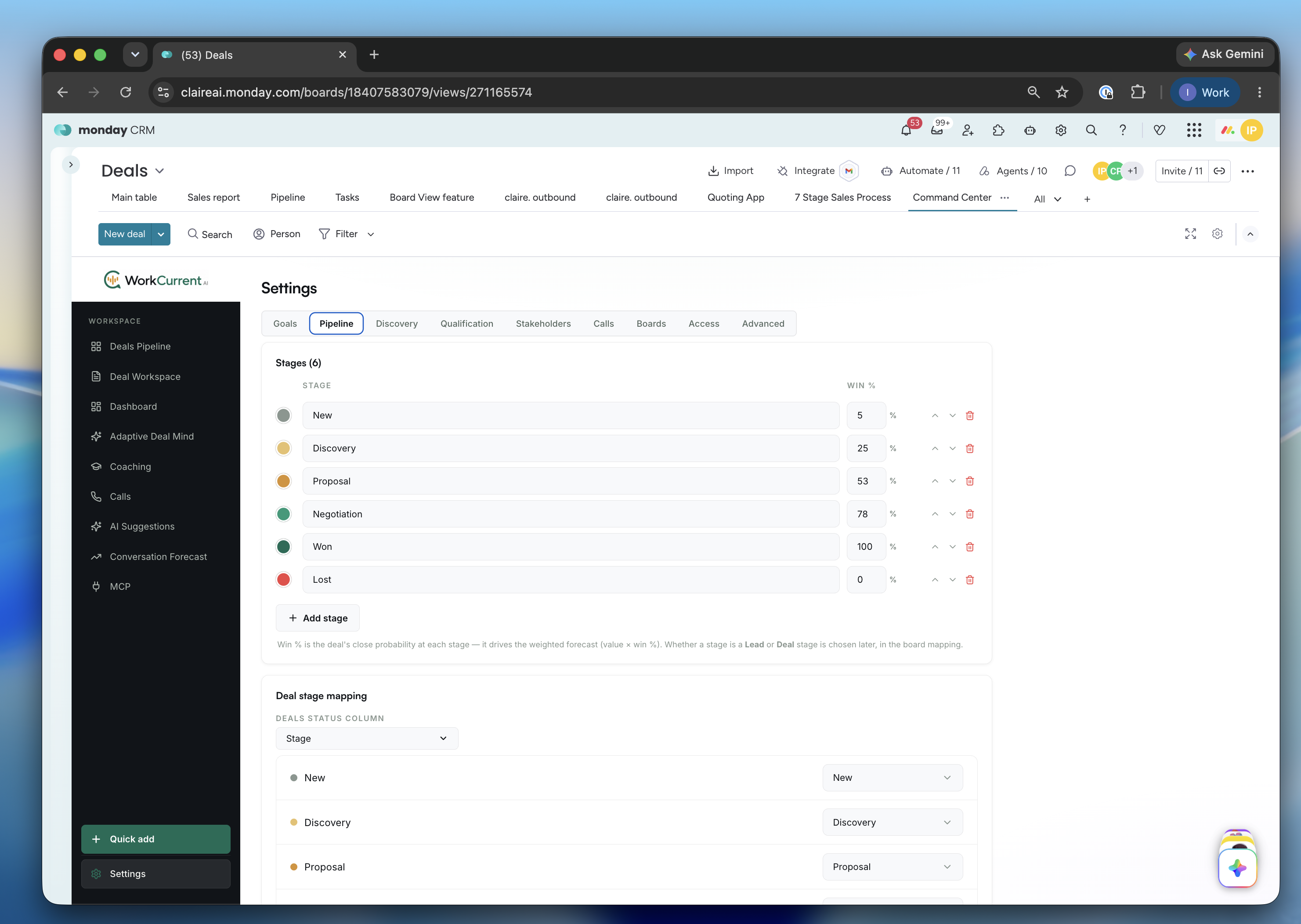
- Customize your stages — rename, recolor, reorder, add, or remove pipeline stages, and set each stage's win-probability band.
- Pick a workspace — the Monday workspace that holds your boards.
- Connect your boards — map each role: Deals (required), and optionally Contacts, Accounts, and Activities.
- Map your stages — tell WorkCurrent AI which status column tracks the pipeline stage. Your board's own labels are never renamed.
- Map your fields — confirm which columns hold each deal field (value, owner, close date, probability, contacts).
- Review & connect — confirm the summary and finish.
Tip: You can revisit any completed step from the progress bar at the top of the wizard.
4. Getting around
The left sidebar is your main navigation. Which sections appear depends on what you connected and your role.
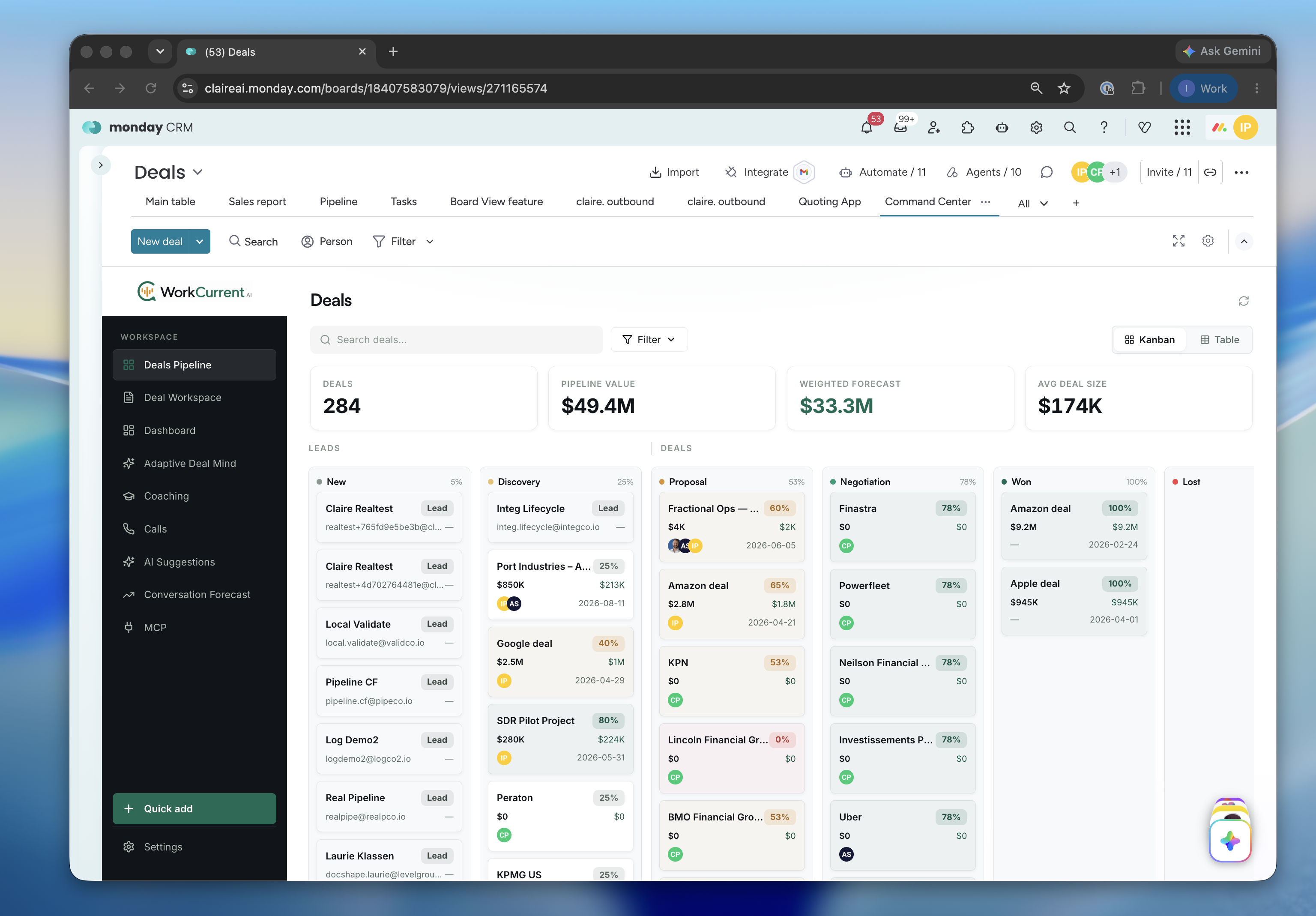
Deals Pipeline
Your opportunities as a Kanban board or a table, organized by your stages. Search, sort, and drag a deal from one stage to the next. A KPI strip summarizes deal count, pipeline value, weighted forecast, and average deal size.
Deal Workspace
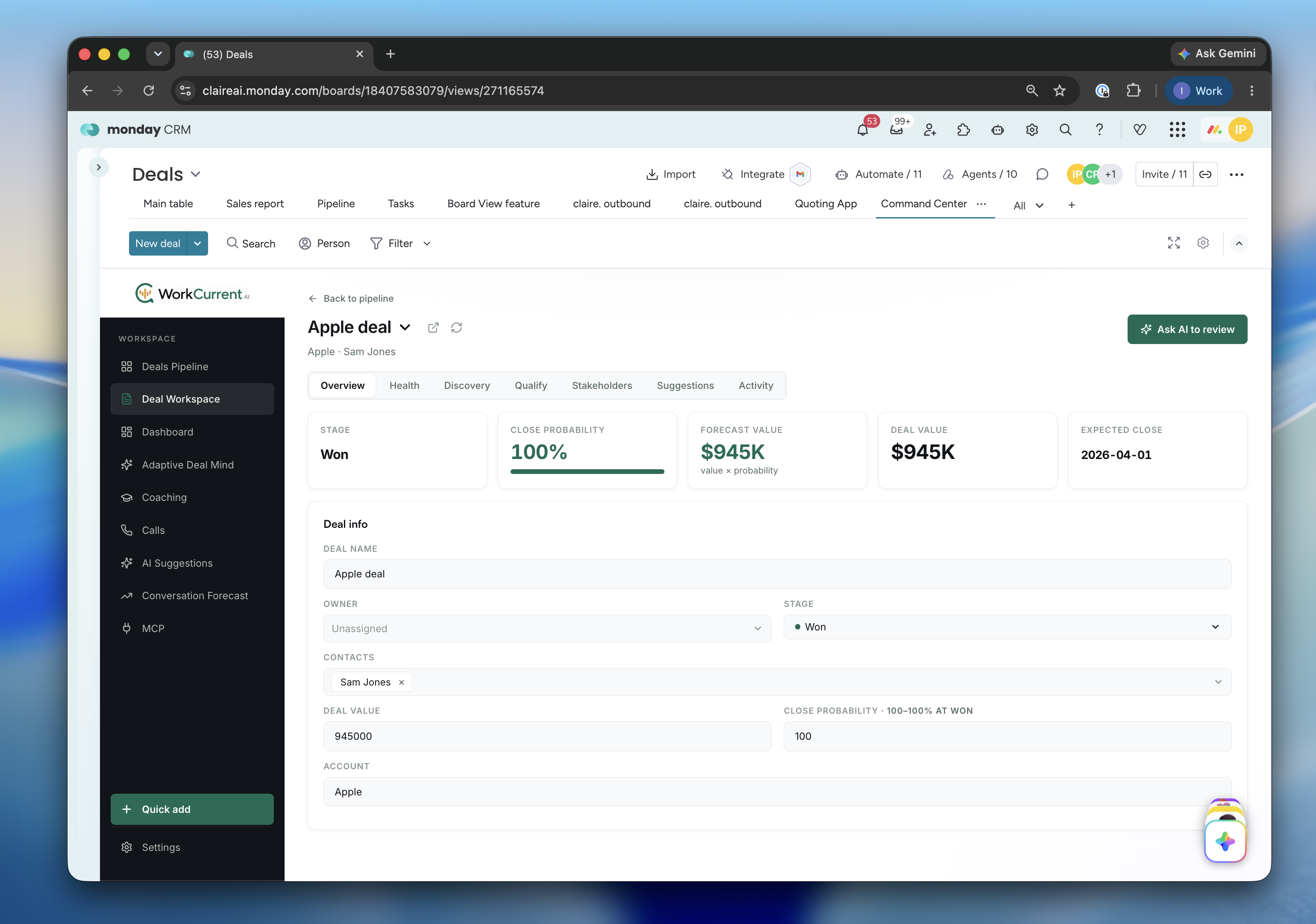
Open any deal to see everything about it in one place, across these tabs:
Overview
Key deal facts and quick edits, with live stage, close probability, and forecast value.
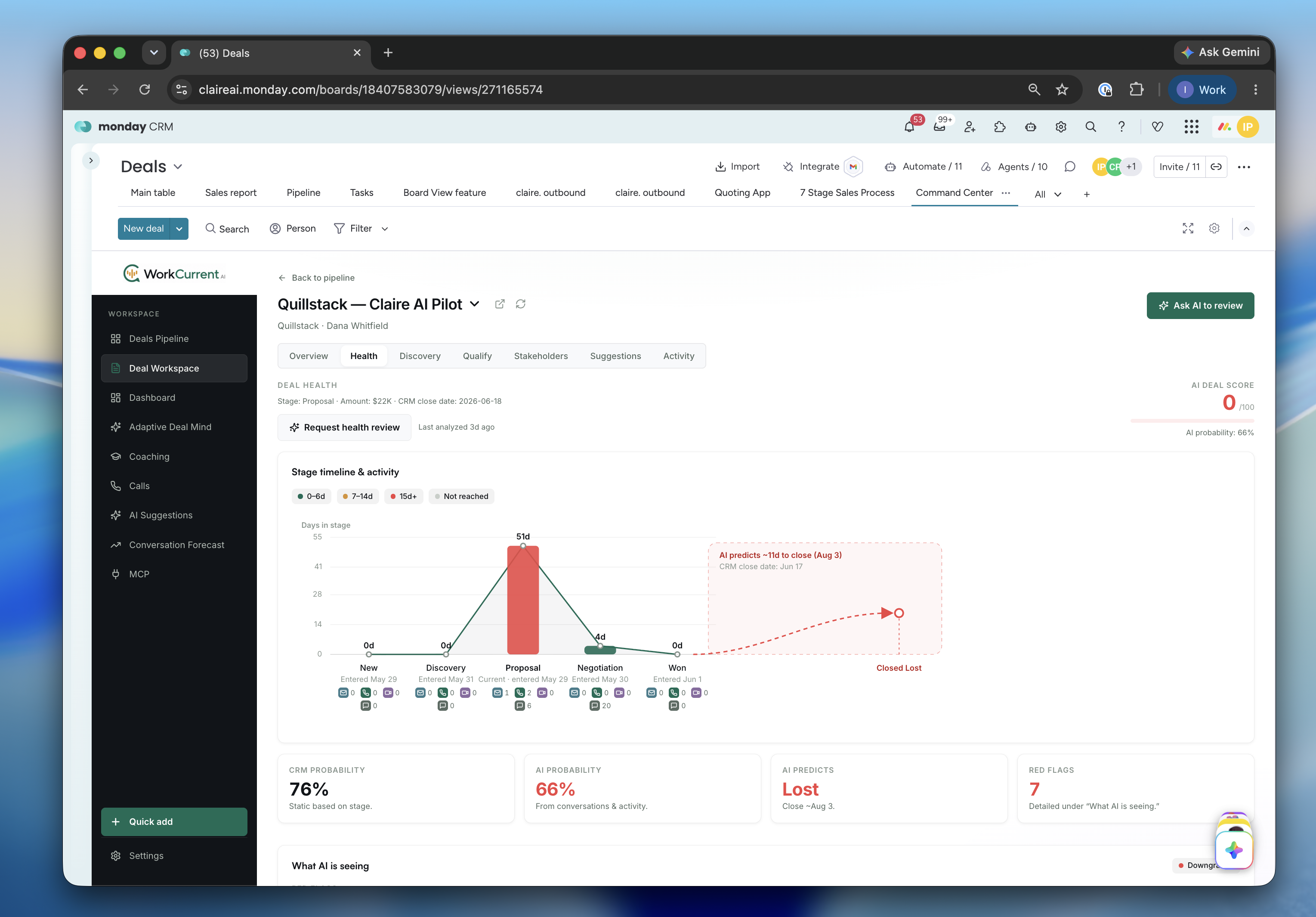
Health
An AI read on how the deal is really doing: an AI deal score, a stage timeline with activity, CRM vs. AI probability, a predicted close, and red flags under "What AI is seeing."
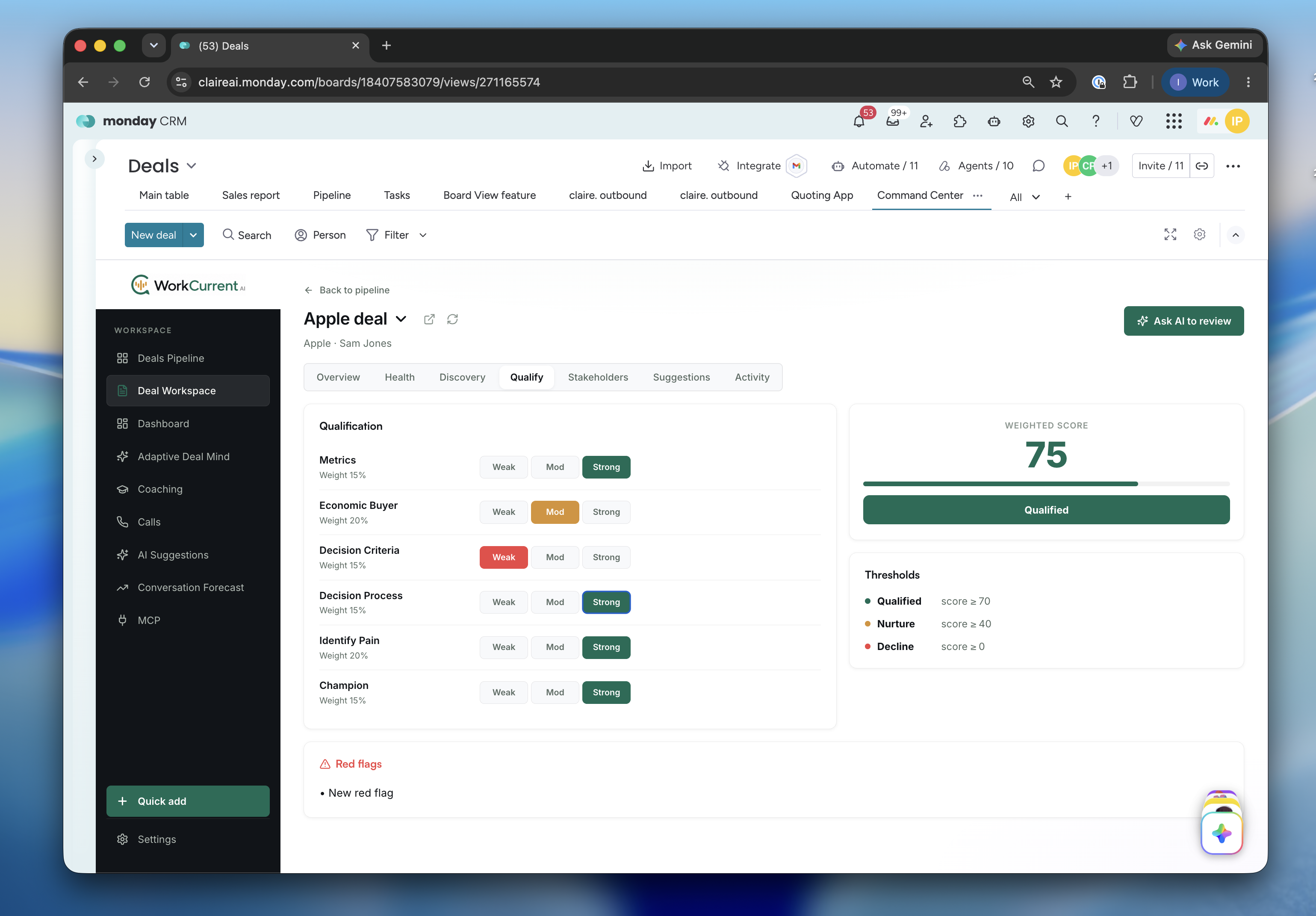
Qualify
A weighted qualification scorecard with a verdict (Qualified / Nurture / Decline) and red flags.
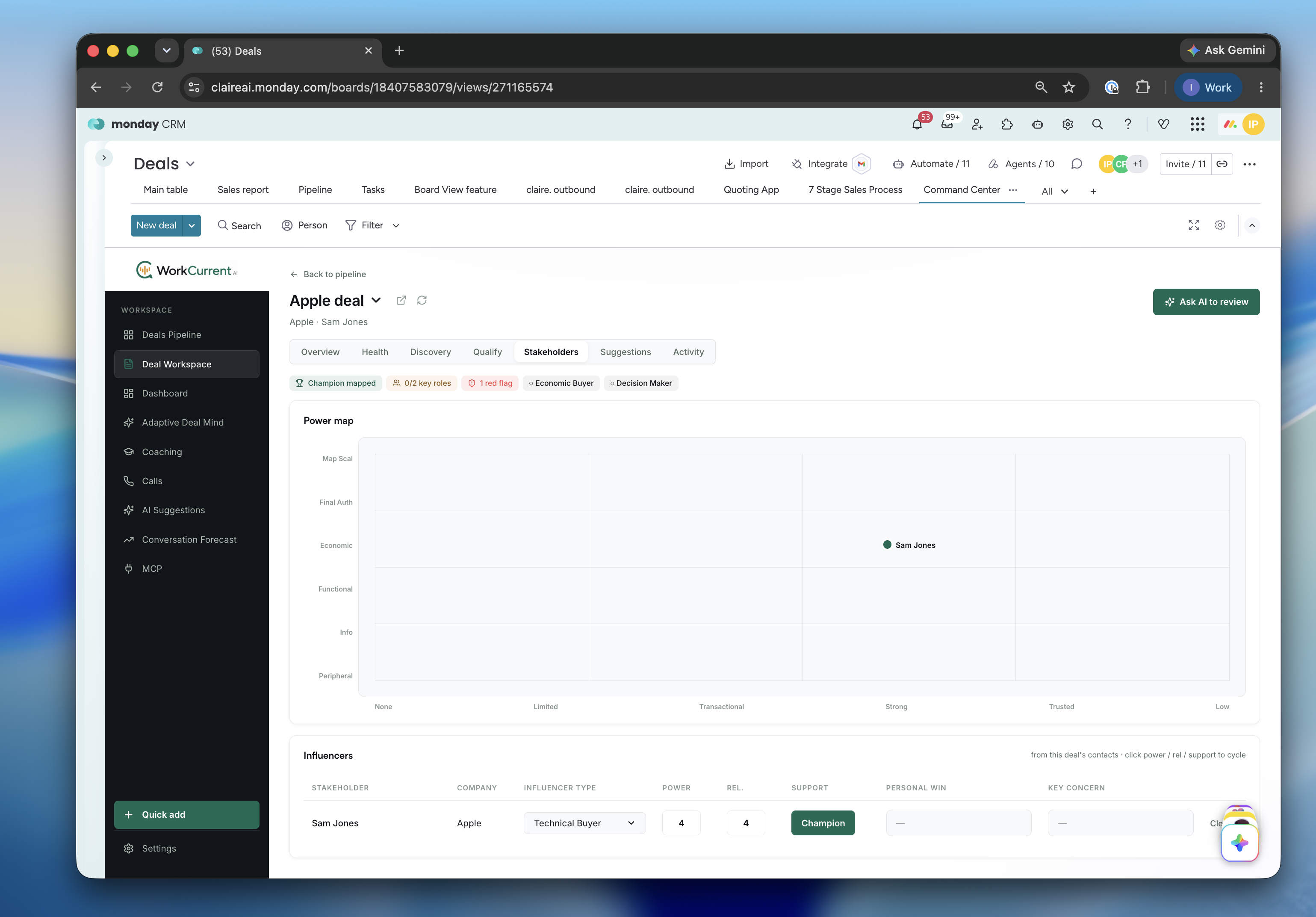
Stakeholders
The buying group as a power map plus an influencers grid, with role coverage and gaps highlighted (needs a connected Contacts board).
Discovery
The per-stage playbook: checklists and evidence questions for the current stage, and the gates a deal must clear to advance.
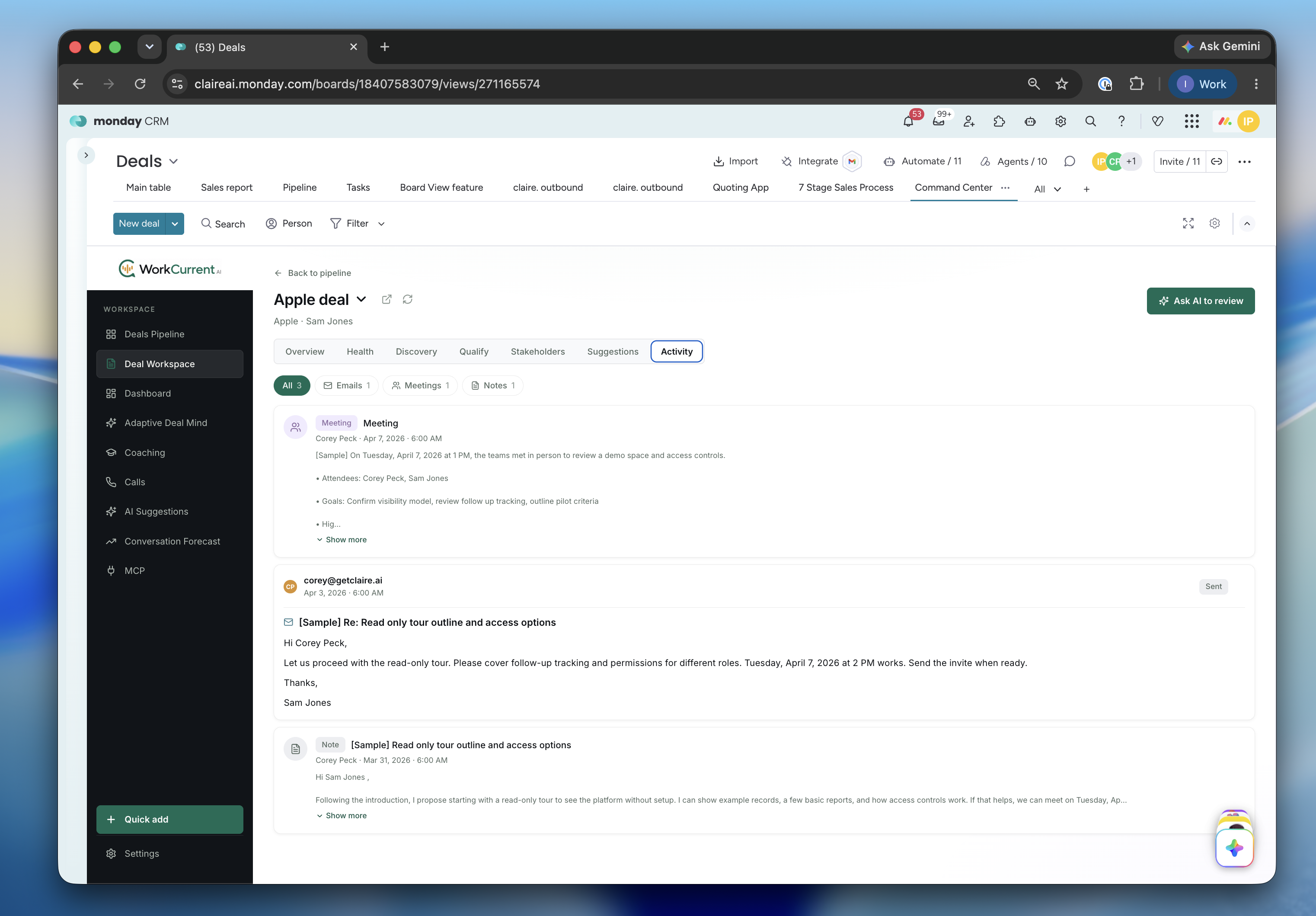
Activity
The communication timeline for the deal (emails, meetings, notes).
Suggestions
AI-suggested next actions for this deal (see AI Suggestions).
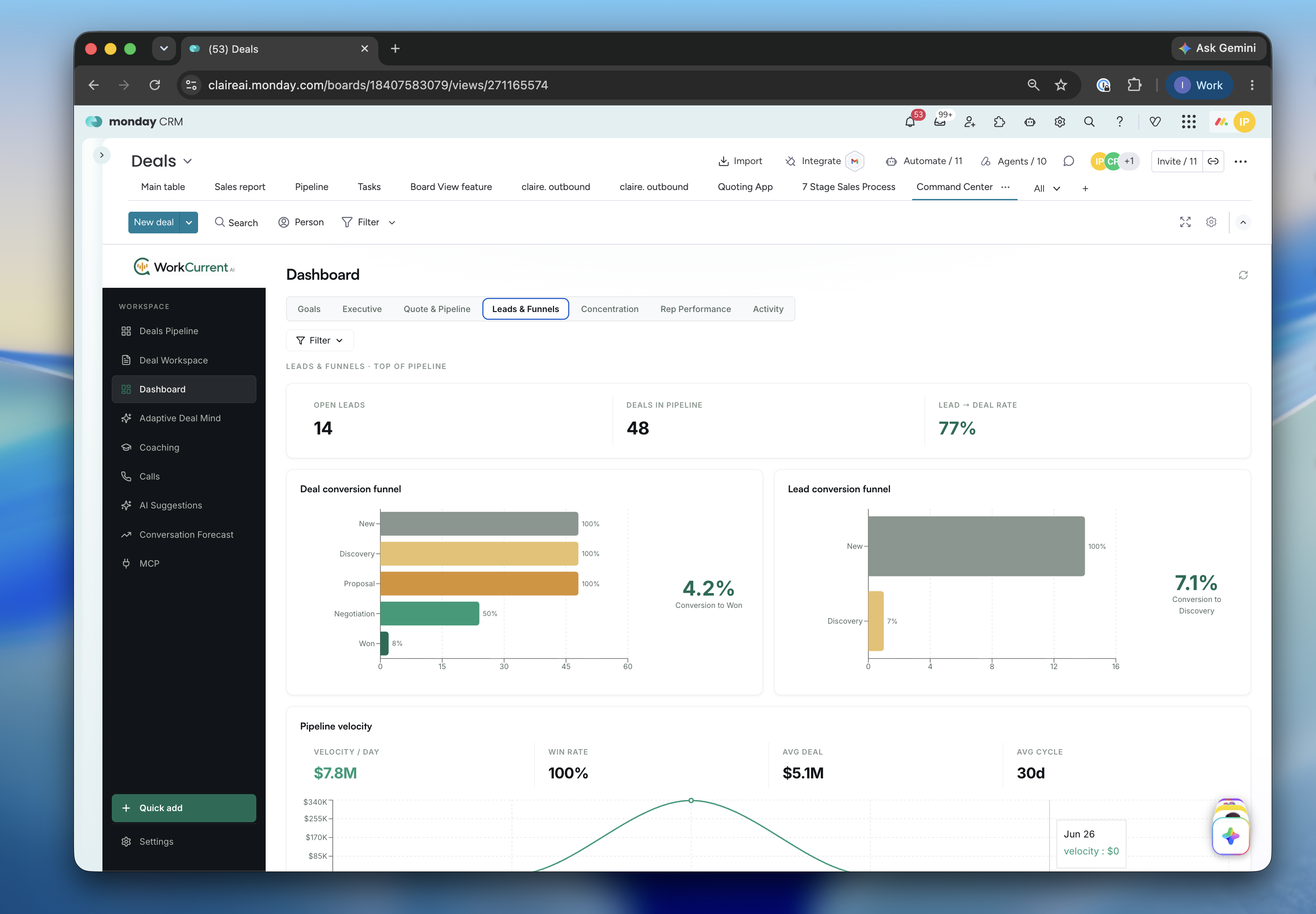
Dashboard
Account-level analytics across tabs (Goals, Executive, Quote & Pipeline, Leads & Funnels, Concentration, Rep Performance, Activity): pipeline KPIs, conversion funnels, velocity, win rate, and per-rep breakdowns.
Adaptive Deal Mind
A living company/account context view. Build and share the context WorkCurrent AI uses to reason about your accounts and deals. A dot on the nav item signals when there's context worth completing.
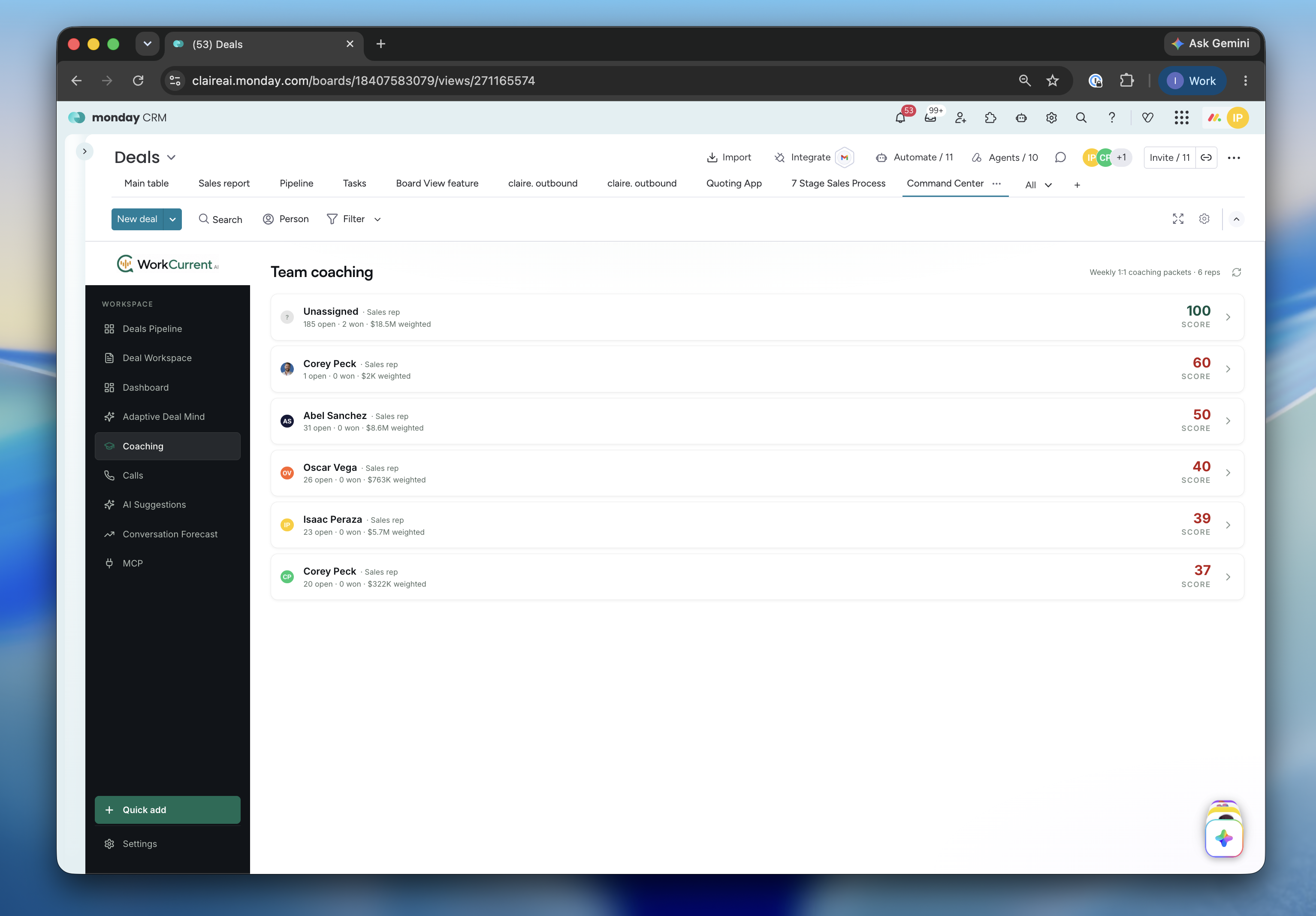
Coaching
Weekly 1:1 coaching packets for the team: each rep gets a score, health, open deals, and coachable moments with suggested next-time responses.
Calls
Your call recordings and reviews. Open a call to see the transcript, key moments, participants, and AI summaries, and to follow up.
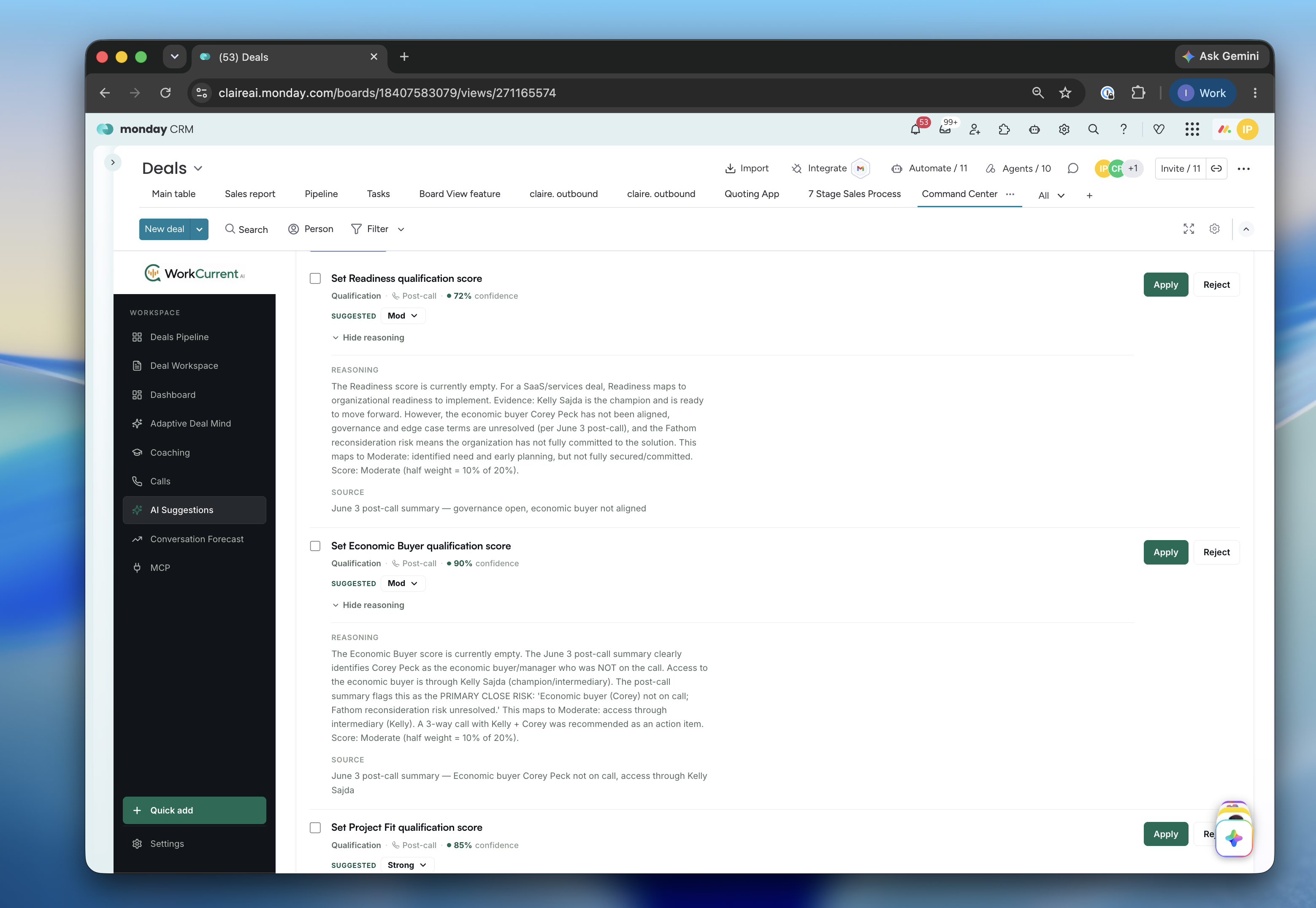
AI Suggestions
An account-wide review queue of AI-proposed changes. Each suggestion shows its confidence, reasoning, and source, and you Apply or Reject it.
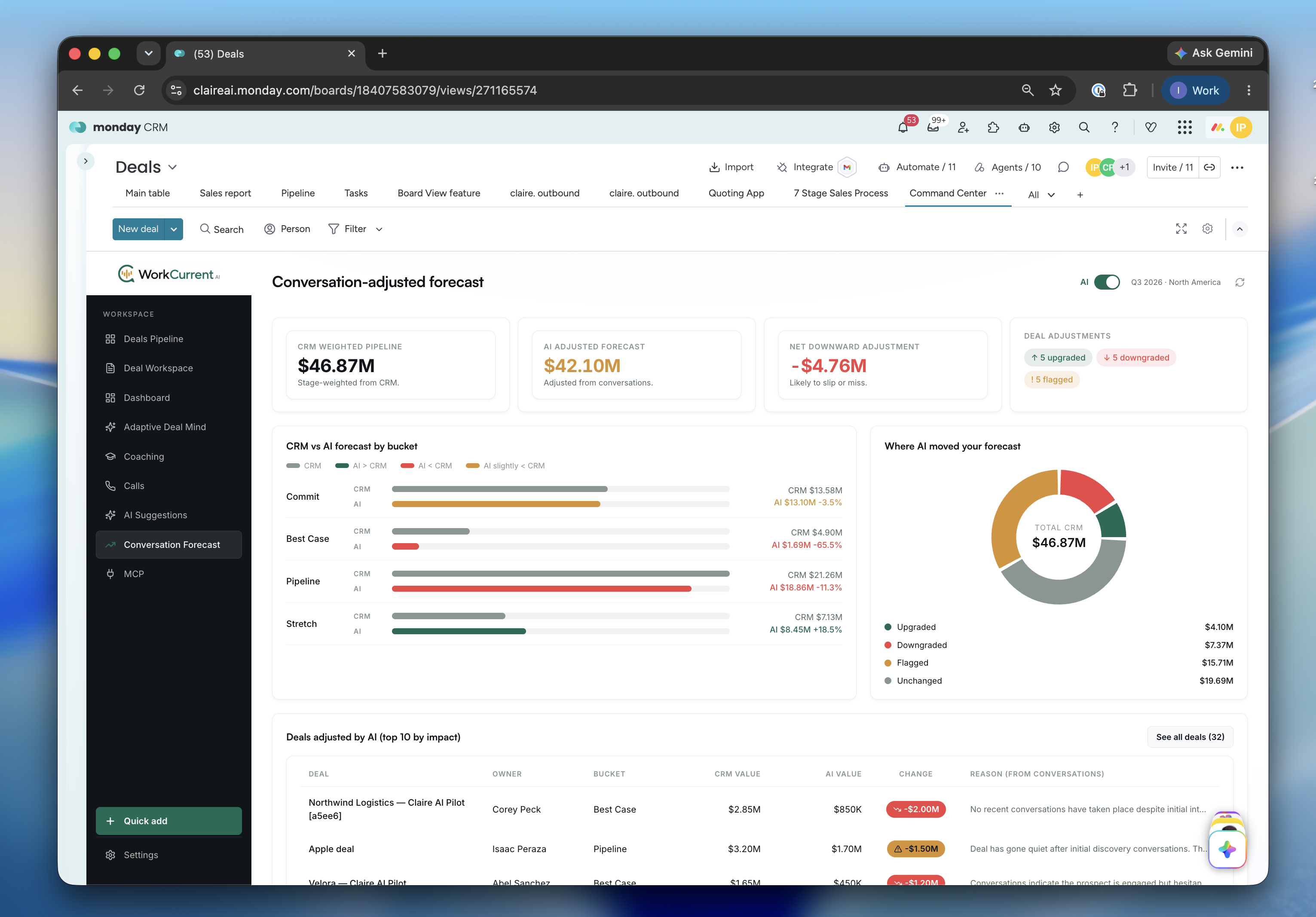
Conversation Forecast
A forecast adjusted by what's actually said in conversations, not just stage math. Compare CRM-weighted vs. AI-adjusted pipeline, see where AI moved the number, and review the per-deal adjustments and reasons.
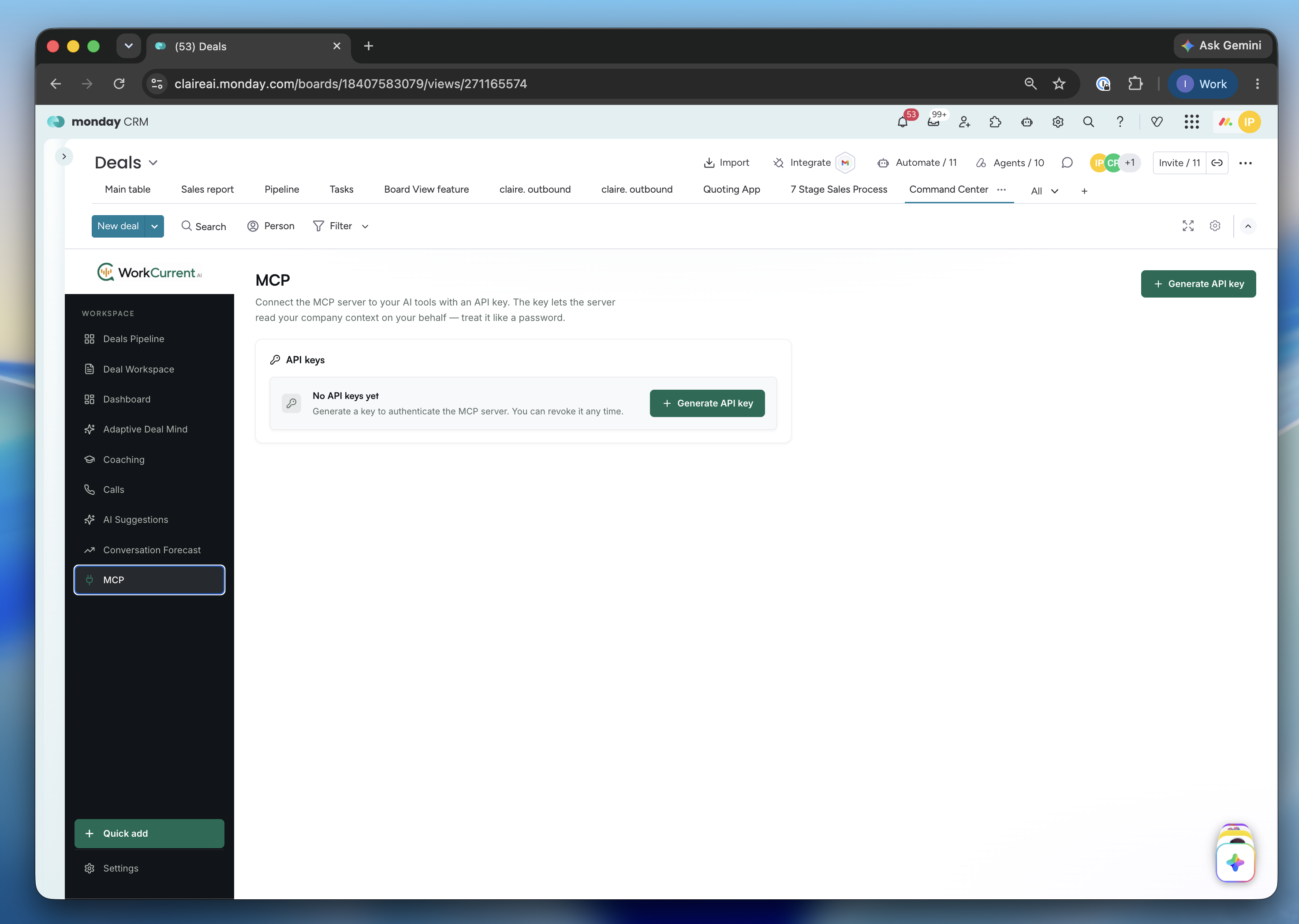
MCP
Manage MCP API keys so approved AI tools and agents can securely connect to your WorkCurrent AI data. Treat a key like a password; revoke it anytime.
5. Settings
Open Settings (bottom of the sidebar) to change anything you set up, anytime. Tabs:
- Goals — annual targets: revenue, pipeline, deals won, and win rate.
- Pipeline — stages, colors, win-probability bands, and the deal-stage mapping to your board's status column.
- Discovery — per-stage playbook: checklists and evidence questions.
- Qualification — weighted scorecard, verdict bands, and red flags.
- Stakeholders — buying roles, required coverage, support levels, and power-map scales.
- Calls — call-review configuration.
- Boards — connected Monday boards, with Reconnect boards to change the mapping.
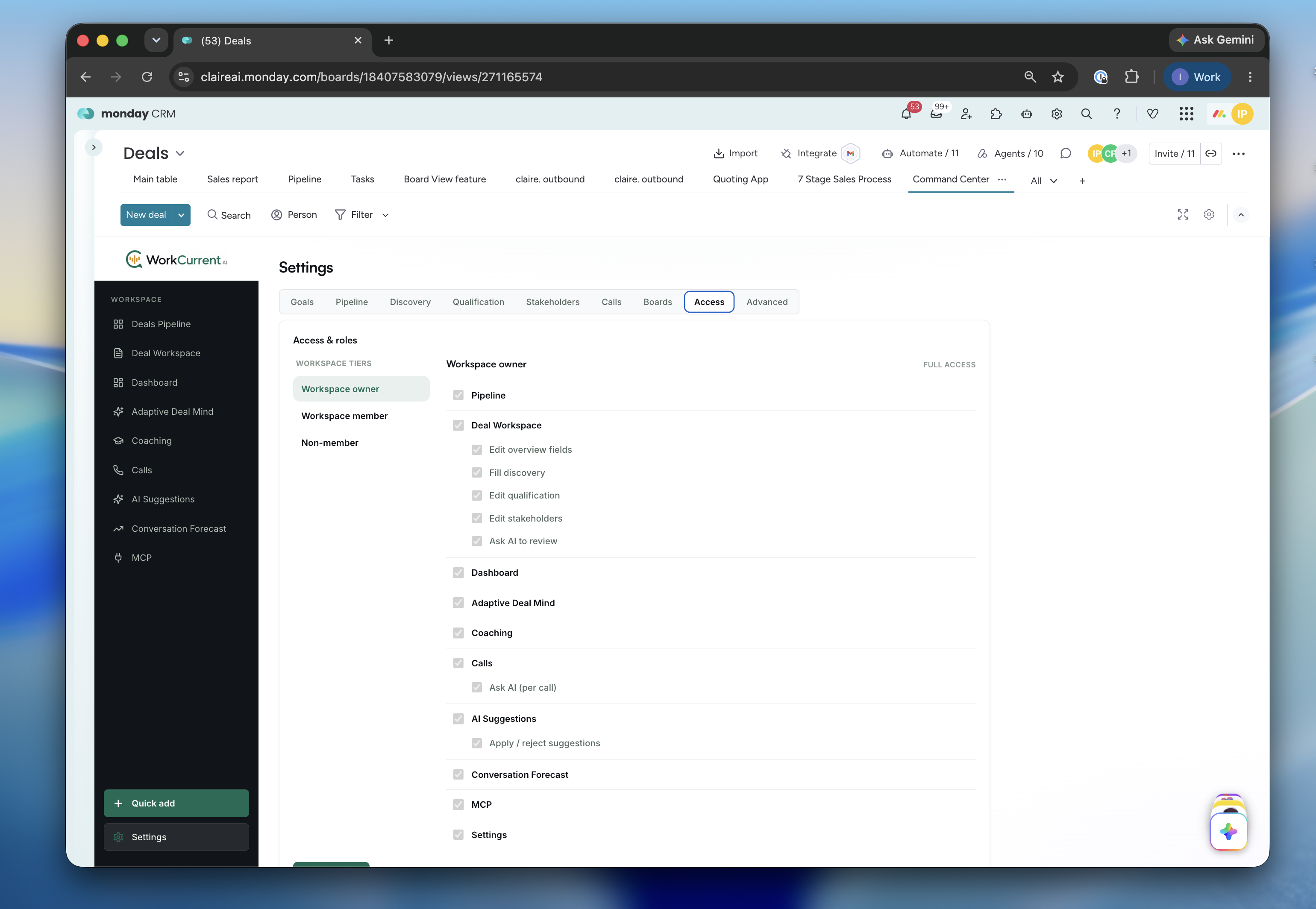
- Access — role-based access: what Workspace owners, members, and non-members can see and do per section.
- Advanced — remove the app setup, plus developer tools.
Reconnecting boards
To point WorkCurrent AI at different boards, go to Settings → Boards → Reconnect boards. This reopens the board-mapping step with your current setup pre-filled and merges your changes on save. The mapping is saved at the account level, so everyone on the account shares the same connected boards.
6. Removing the app
To clear the app's setup, go to Settings → Advanced → Remove WorkCurrent AI. This removes the configuration and any columns/boards it created during setup. Your own CRM data in Monday is not touched. To uninstall completely, remove the app from your Monday account's installed-apps list.
7. Troubleshooting
"No board slots to map" or an empty setup step. The app couldn't read your boards, or none are configured yet. Use Re-check, and confirm you approved the boards permission.
A dashboard or panel is empty. Confirm the right board is connected in Settings → Boards, and that it has the items/columns the panel needs. Use Refresh to re-pull data.
I connected the wrong board. Use Settings → Boards → Reconnect boards to remap.